Showing posts with label ebooks. Show all posts

August 13, 2012

8 Things to Learn from Jake Needham about eBooks and Publishing

It's not everyday in Thailand that you get to hear an internationally-acclaimed author talk about his work. The last time I had the opportunity to hear a writer speak was Stephen Leather over a year ago. Author Jake Needham gave a great talk yesterday morning at the Pattaya City Expats Club. I'm not a dues-paying member of this club, just some bum who happens to have a residence in the same province. Thankfully, I was invited to join the audience by the friendly folks at the PCEC. I've been working through Jake's latest thriller: A World of Trouble. People who have spent time in Thailand will recognize some of the familiar personalities and typical foibles of the country, but those who haven't been to the Land of Smiles can also enjoy this great crime novel.

Jake Needham sells around 5,000 eBooks a month and has been writing for years, so when he talks it is wise to listen. One nice thing about being part of the author community is that veteran writers often share tips and tricks of the trade and are extremely helpful to people just starting out. You cannot say this about every community--how many investment bankers are going to give you stock tips without charging an arm and a leg? Anyway, here's 8 good points he brought up on publishing, eBooks, and the future of reading.


1) Print Books are Hard to Discover


Due to the distribution challenges, logistical requirements, and high fixed costs for print books, it can be hard for authors to even get your book in a bookstore in the first place. Joel Friedlander touched on what a pain distributing to bookstores was in a blog post a few weeks back. Once you get your book into a bookstore, it might not even be worthwhile. Unless you're some bigwig author, most bookstores are just going to turn them sideways and stuff them on a shelve in between the Woman's Studies section and the bathroom. Jake mentioned some of his frustrations with this process.

2) Retailers of Print Books are a Commodity Business


One of the "dirty little secrets" of the book business, Jake noted, is that the Barnes & Nobles, Waterstones, and Asiabooks (in Thailand's case) of the world just want to stock shelves with books and move them out the door. They're not really interested in selling specific books or figuring out what customers really want. In a lot of ways it's like going to Walmart or Tesco and buying sugar. Jake asked the audience do you really care what brand of sugar you buy? No, not really. You just want to know that the sugar (or books) are there, because the customer is probably going to buy some no matter what the brand name is. Of course you and I know that a business model involving mass sales without customer feedback or a solid marketing strategy is not well-suited to the information age...just ask Borders.

3) The Publisher's Main Reason for Existence was Product Placement, but That No Longer Applies with eBooks


Once upon a time, the big added value that publishers offered was the infrastructure and capacity to get your book in a bookstore. If you were a top-tier author, they might even do a little promotion for you (ads in magazines, swag, etc.) However, with the rise of eBooks the playing field is becoming much more level. The Amazon algorithm is about as mysterious as the Bermuda Triangle, but one thing for certain is that it doesn't really discriminate whether you are self-published or Big 6-published. Jake said that this reality truly benefits the author and the reader.

4) With eBooks, Readers are the Gatekeepers, Not Publishers

Jake said he was pleased that readers are the ones who decide whether a book will be a success or not. Under the publishing process for the last several hundred years or so, authors had to write to impress the publisher, but not the reader. By allowing a direct connection between author and reader through eBooks, an author can better understand their audience. This of course also has the benefit of improving your writing and sales. If you're the kind of author who enjoys writing so they can hobknob with the blue-hairs on the wine and cheese circuit of Manhattan, this new paradigm of writing for the masses might be a bad thing. However, if you're like the rest of us trying to make a living, this is great.

5) The Accessibility of eBooks Can't Be Beat


Speaking as a reader, Jake noted that he really enjoyed the accessibility of eBooks. As a person who actually has the money to travel (he must not be married to a Thai woman), Jake enjoys carrying around an iPad rather than a suitcase full of books. He even mentioned that he would read on his iPhone in a pinch. Jake prefers the back-lit eReading off tablets (same as me), but other folks in the audience mentioned the e-ink displays were easier on the eyes (same as Jeff Bezos). One gentleman during the Q&A even stated that he needs to read on a MacBook plugged into a 32" monitor due to trouble with his eyesight. Whatever format the reader prefers, the reflowable nature of eBooks allows a good reading experience for people of all different preferences.

6) As an Author, Don't Be Afraid to Outsource


Giving some hope to our new startup, BB eBooks, Jake noted that he outsources his cover design and interior design/eBook formatting. He said that the EPUB and MOBI/KF8 formats were the major standards, but he didn't really know how they were put together. That sounds about right, because you sort of have to be a big nerd with skin problems and some time on your hands to figure out the technical requirements of eBooks. He paid a company to turn his word document into the eBook format, which is the crux of our own business model. He also talked about the need to invest in a cover designer and editor. All in all, he said you could get your book published for about $500. This is in the same ballpark as we advise our clients; however, it really depends on what you want to do and not do.

7) Marketing is Somewhat Mysterious, but Get to Know Your Readers


Like every other author, small press, and big publishing houses, the bulletproof way to market your eBook is a bit of mystery. Jake knows this and every author who isn't full of himself knows this. eBooks and social media are just so new and dynamic that it's difficult to say. However, Jake did provide some tidbits on marketing. He says that word of mouth works best for him and he is constantly connecting with his readers, which lets people know he is a good guy. No one wants to buy a book from a jackass. Lindsay Buroker has some great tips on how not to be a schmuck when you market your eBook.

8) eBook Piracy is not a Big Concern

Perusin' the Thai Rath
During the Q&A, I asked Jake about his approach to the problem of eBook piracy. He said because his eBooks are priced reasonably and fairly (about $4.99), he isn't really worried about it. This is extremely good news for a high-profile author to be saying this, since Digital Rights Management (DRM) is holding back the entire eBook industry. Jake said he had never heard about one of his eBooks being pirated. I checked some of the torrent sites that are known to have pirated eBooks (no, I won't share the links), and lo and behold none of Jake's books were there. Hopefully, Jake will take this message to other authors who equate eBook piracy with the Four Horseman of the Apocalypse.

A big thank-you is in order to Jake Needham for making time to give a talk on a Sunday morning (over a three-day weekend in Thailand no less). Show some love by picking up a copy of A World of Trouble.
Share/Bookmark

July 13, 2012

A New and Improved EPUB and KindleGen Tutorial

The EPUB and KindleGen tutorial originally written last year is one of the most viewed pages on this site. I believe the reason for this is that the information online is relatively sparse concerning this open eBook standard. I spent some time working on a new tutorial for building an eBook from the ground up, without the use of third-party software. The result is the EPUB and KindleGen tutorial on the BB eBooks website. There are also EPUB samples that you can download for your eBook projects on our Developers page.

Please let me know if you have any feedback or questions on it, and I hope that it helps eBook designers create better eBooks.
Share/Bookmark

June 22, 2012

Our New eBook Startup - BB eBooks


We have officially launched our eBook design startup based in Bangkok, Thailand—BB eBooks. Our company’s business model is simple: “providing quality services at a low cost.” At BB eBooks we would like to assist independent authors and small presses turn their manuscripts into professional eBooks, so that they can make great sales at all the major online retailers (e.g. Amazon's Kindle Store, Barnes & Noble's Nook, iBookstore, Smashwords, etc.) The eBook conversion process can be frustrating for independent authors and small presses due to the changing requirements and new technologies. We want to help the writing community and our services are only a one-time fee—BB eBooks takes no royalties and does not charge hidden fees. Your manuscript can become an eBook for as low as $50, so please visit our website to learn how we can help you. We can also do Print-on-Demand. All of the quotes for our services we provide are no-obligation. Also, please sign up for the mailing list for promotions, design & marketing tips, plus eBook industry news.

BB eBooks also has an online eBook reader, and we have a small library of some of the classics in the public domain. This service is absolutely free for you to enjoy a casual read. The BB eBooks reader works on any device—PCs, tablets, and mobile—right in your favorite web browser. For those writers, editors, and publishers looking to go the DIY route for eBook production (you probably are if you visited this page), we offer free online tutorials and apps to help you professionally design your eBook. Please visit our Developers page and let’s work together to improve the overall standards of eBooks.

Thank you very much for your time, and we look forward to hearing from you.

Sincerely,


Bee and Paul


FOR IMMEDIATE RELEASE
===========
BB eBooks Provides Affordable Services for Self-Publishing Authors and Small Presses

Bangkok, Thailand – June 20, 2012 – BB eBooks recognizes the rapid growth of the eBook market and understands the writer's needs to have full control over their crafted work. With its technical knowledge, customer-oriented approach, and understanding of the eBook market, BB eBooks seeks to provide self-publishers and small presses with professional design services for all eBook formats. BB eBooks utilizes the latest technology – HTML, CSS, and XML – to make sure that all eBooks look excellent across a wide range of electronic devices.

One of the main advantages of eBooks is portability, replacing the burden of carrying around the tremendous weight of textbooks, hardcovers, and other large print formats. Typically, an eBook reader can store up to 1,000+ books and it facilitates sharing amongst readers instantaneously. Another benefit of eBooks is the low-cost due to lack of warehousing and distribution requirements.

Unfortunately, many eBooks sold by the major distributors (i.e. Amazon, Apple, and Barnes & Noble) are poorly designed and frequently criticized by readers. When asked how BB eBooks would improve standards in eBook design, Paul Salvette (Managing Director) replied, "We focus on using the latest technology standards and our own knowledge of HTML/CSS to handcraft each eBook, rather than just trying to use bloated software to convert a print book to an eBook."

Many authors and small presses face technical challenges in trying to achieve a professional-quality eBook. Panich Choonhanirunrit (Director of Marketing and Sales), who is also a writer, said, "We really want to alleviate the burden in the publishing process by providing the outstanding eBook design at an affordable price. That way, writers can spend their valuable time focusing on what's important—writing."

The company aims to turn information into professional eBooks as a service to the content-creating community. This will allow writers and small presses with limited budgets to sell their eBooks world-wide.
Share/Bookmark

June 15, 2012

Adding Background Images and Gradients to Your eBooks


Thank you for visiting this eBook design tutorial. We now have an eBook design startup—BB eBooks—dedicated to helping independent authors and small presses get their eBooks formatted, converted, and ready for sale at all the major online retailers (e.g. Amazon's Kindle Store, Barnes & Noble's Nook, iBookstore, Smashwords, etc.) Please contact us for a no-obligation quote. For those writers, editors, and publishers looking to go the DIY route for eBook production (you probably are if you visited this page), we offer free online tutorials and apps to help you professionally design your eBook. Please visit our Developers page and let’s work together to improve the overall standards of eBooks. Also, please sign up for the mailing list for promotions, design & marketing tips, plus eBook industry news.


Looking for a complete guide on eBook production? Please consider The eBook Design and Development Guide, which contains everything you need to know about HTML, CSS, EPUB, and MOBI/KF8 to make an eBook like a pro. Pick it up at Amazon for $6.99 today.

Changing the background in eBooks is not possible on e-ink Kindles/Kindle for iOS; however, since the Kindle Fire runs on the Webkit engine, it is possible to use higher-level CSS properties to style different types of backgrounds on this device. To change the color, you simply use the background-color: color code; syntax. This may be suitable in some situations, but print books often have repeating images or gradients in the background of certain types of content to draw the reader's attention. This guide discourages altering the background for the entire eBook, because it prevents the user from selecting their default background (on the Kindle Fire users have a choice between white, sepia, and black). Full background alterations can also looks tacky--like a MySpace page circa 2005.

Background Images


Hypothetically, you have a public domain image from a site like Open Clip Art that you would like to be the background for some boxes of content in your eBook. This 50x50px image has the filename seashell.jpg and it is in the same directory as your CSS file. The CSS syntax to declare the seashell as a background image is as follows:
p.myseashells
{
background-image: url("seashell.jpg");
}
Tip: If your image file was in a different directory than your CSS, you simply specify a relative path for the URL such as "./myimages/seashell.jpg". In this example, the CSS file is in the parent directory to myimages.

Now that you have declared a background image for paragraph elements with the myseashells class, you can implement the CSS with the following HTML markup:
<p>Normal paragraph content</p>
<p class="myseashells">This is paragraph content where there is a background image applied. Notice how by default it repeats both horizontally and vertically. We will learn how to further customize our CSS to allow repeating images.</p>
Background Image on Kindle Fire

By default the background image repeats vertically and horizontally to encompass the entire box of the paragraph element. The first seashell is located at the top and left of the box, and it repeats until the start of the border section of the box. This means that if any padding is applied on the box, the background image will be rendered behind the padding section as well as the content section.

The preceding example is a bit unseemly, because it overwhelms the content. There isn't a good way in CSS to add transparency to a background image. To make the image have some opacity, you can add an alpha channel in a suitable image editor and save the image as a PNG. You may also want the background-image to repeat in specific directions or not at all. Here is the CSS to perform this task:
background-repeat: repeat-x; /* Repeat Image Horizontally Only */
background-repeat: repeat-y; /* Repeat Image Vertically Only */
background-repeat: no-repeat; /* Image Only Appears in the Top Left */
Different Repeating Background Directions

Gradients


Adding gradient colors to your eBook gives a very professional look on content you would like to emphasize to the reader. While using a gradient for the entire background of the viewport would cause poor readability, gradients can be useful for individual boxes of content you would like to stand out. The syntax for generating a gradient background can get a bit complicated. It also doesn't help that the CSS3 standard for gradients is still evolving and changing, even though it was introduced way back in 2008. Since Kindle Fire is based on the Webkit engine, the following is the basic CSS syntax for a linear gradient. Please note the -webkit- prefix and the fact that there are no spaces before or after the parentheses:
background-image: -webkit-gradient(linear, staring point, ending point, from(color), to(color));
If you wanted a gradient to start on top of the box with a white color and end with a gray color, some sample CSS would look as follows:
p#graygradient
{
background-image: -webkit-gradient(linear, left top, left bottom, from(white), to(gray));
border-radius: 15px;
border: 1px solid black;
padding: 5px;
}
Gradients on Kindle Fire

Notice how the gradient starts at the top with the white color and terminates at the bottom with the gray color. It is also possible to provide different directions in the first and second values. The entire specification that is unique for Webkit is here.

Important Note: The -webkit- prefix is required for the CSS3 to be recognized on Chrome and Kindle Fire. The newer gradient specification that uses a different syntax does not yet render on the Kindle Fire.
Share/Bookmark

June 11, 2012

Embedding Fonts in Kindle eBooks


Thank you for visiting this eBook design tutorial. We now have an eBook design startup—BB eBooks—dedicated to helping independent authors and small presses get their eBooks formatted, converted, and ready for sale at all the major online retailers (e.g. Amazon's Kindle Store, Barnes & Noble's Nook, iBookstore, Smashwords, etc.) Please contact us for a no-obligation quote. For those writers, editors, and publishers looking to go the DIY route for eBook production (you probably are if you visited this page), we offer free online tutorials and apps to help you professionally design your eBook. Please visit our Developers page and let’s work together to improve the overall standards of eBooks. Also, please sign up for the mailing list for promotions, design & marketing tips, plus eBook industry news.


Looking for a complete guide on eBook design and development? Please consider The eBook Design and Development Guide, which contains everything you need to know about HTML, CSS, EPUB, and MOBI/KF8 to make an eBook like a pro. Pick it up at Amazon for $6.99 today.

Publishers who have extensive experience in the print industry know that the fonts which are chosen when a book goes to print is an extremely important decision. However, this thought process must be radically changed when it comes to eBooks. Readers like to have complete control over the reading experience. One of the great things about eBooks is that readers can change the font to whatever is suitable for them. Perhaps they like Times New Roman (a serif font that was designed for newspapers). Perhaps they enjoy reading with an Arial font (a common sans-serif font). Perhaps they prefer to use some unique font that they found somewhere else (this can be done if by “jailbreaking” the Kindle). Everyone is different. For this reason, this guide discourages defining fonts on eBooks for content text. There is also the matter of contentious and confusing legalities regarding embedding fonts in eBooks. However, if you are determined to define a font for your content, it is possible to do so with the Kindle Fire.

The Core Kindle Fonts

The older e-ink Kindles and Kindle for iOS support two types of fonts: Palantino and Courier New (a mono-spaced font). Font embedding is not allowed; therefore, there is not much selection.
The two fonts of the e-ink Kindle/Kindle for iOS
Luckily, the newer Kindle Fire offers a bit more variety. Kindle Fire users have the option to select the following core fonts on their device:
  • Georgia (the default)
  • Caecilia
  • Trebuchet
  • Verdana
  • Arial
  • Times New Roman
  • Courier
  • Lucida
Fonts Supported Natively by Kindle Fire

To change fonts using CSS, here is the basic syntax for the property/value combination:
font-family: "Font Name", "Fallback Font", "Another Fallback Font";
Note that the quotes are required on the font name if it has a space within its name, (e.g. "Times New Roman"). Also, ensure that you correctly capitalize the font name per the list above. It is standard practice to include "fallback fonts" in font-family declarations. The eReading device will attempt to load the fonts from left to right; so, if the first font is not recognized by the device for whatever reason, it will try to load the second one. It is also standard practice to have the last fallback font as one of the generic families (i.e. "serif", "sans-serif", or "monospace").
As an example, suppose we wanted a paragraph to have the Courier typeface with some Verdana inside. Some example CSS would be as follows:
p.courier
{
font-family: "Courier", monospace;
}

span.verdana
{
font-family: "Verdana", sans-serif;
}
Different Font Examples on the Kindle Fire

Please try to experiment with different fonts, but remember to be careful about how you type in the font name in your CSS, or else it will not properly render.

Important Note: Due to anomalies in the Kindle Fire Previewer device, some typical fonts such as "Comic Sans" and "Helvetica" may appear to be working properly on the Previewer, but they will not work on an actual Kindle Fire. The only fonts that work "natively" on the Kindle Fire are the eight listed above. It may be wise to embed your fonts (as discussed below) if you cannot test your eBook on an actual Kindle Fire device.

Embedding Fonts

For those eBook designers who want to take things to the next level, you may wish to embed a font that is not supported natively in the Kindle Fire. Beware. You have to make sure you have the proper license and rights or you (or your client) can get your pants sued off by a bunch of low-life copyright trolls. One way to be sure that your desired font is okay to use commercially is to visit the Font Squirrel website. They have an outstanding selection of fonts to choose from, and you simply download the font file (in ttf and otf format) from different foundries. Make sure to read the license agreement from each specific foundry to verify that it is okay to embed in an eBook.

Say you want to change the headings of your eBook to a font from an excellent open-source foundry, such as The League of Moveable Type. Let's try the Orbitron font to make our chapter headings more fancy. You need to declare the new font with an @font-face declaration at the beginning of your CSS. This defines a name for your font and points to the file. The file name is relative to the location of the CSS.

For this example, the Orbitron otf font has a filename of orbitron-medium.otf and is located in the same directory as the CSS file. To be able to use this font, the CSS is as follows:
@font-face
{
font-family: "My Awesome Font";
src: url("orbitron-medium.otf");
}
You now can access the font "My Awesome Font" anywhere in your CSS the same way you would declare a core font. Declaring this font for all h2 headings would simply look as follows:
h2
{
font-family: "My Awesome Font", "Helvetica", sans-serif;
font-size: 1.5em;
text-align: center;
}
Embedded Font in Kindle Fire

Important Note: You also have to include the font file in the eBook package. This will be discussed later in the guide.
Share/Bookmark

April 18, 2012

Indents, Margins, and Alignment for the Kindle Fire


Thank you for visiting this eBook design tutorial. We now have an eBook design startup—BB eBooks—dedicated to helping independent authors and small presses get their eBooks formatted, converted, and ready for sale at all the major online retailers (e.g. Amazon's Kindle Store, Barnes & Noble's Nook, iBookstore, Smashwords, etc.) Please contact us for a no-obligation quote. For those writers, editors, and publishers looking to go the DIY route for eBook production (you probably are if you visited this page), we offer free online tutorials and apps to help you professionally design your eBook. Please visit our Developers page and let’s work together to improve the overall standards of eBooks. Also, please sign up for the mailing list for promotions, design & marketing tips, plus eBook industry news.


Looking for a complete guide on eBook design and development? Please consider The eBook Design and Development Guide, which contains everything you need to know about HTML, CSS, EPUB, and MOBI/KF8 to make an eBook like a pro. Pick it up at Amazon for $6.99 today.

Previous Post: CSS Box Model

The default rendering of HTML content in eBook reading devices is not exactly a pretty sight. Typically, there will be no indents, justified text, and the same spacing in-between each paragraph. This dullness and uniformity create a poor experience for the reader. People who upload .doc files directly into the Kindle Direct Publishing program get results like this, and their lack of knowledge of HTML directly correlates with poor sales. By using some simple CSS styling, you can make your eBook stand out from the rest of the crowd.

Block vs. First-Line Indenting


There are two commonly accepted styles for paragraphs: block and first-line indent. Block paragraphs are typical for non-fiction. It involves no indents in the opening sentence, but leaves a blank line in-between every single paragraph. First-line indent paragraphs have a small indent on the first sentence of the paragraph, but no space in-between paragraphs. Both paragraph styles allow the reader to easily determine when a paragraph starts and when a paragraph ends. This typography convention is not new, but it gets screwed up by poor eBook design.

Below is an example of the different paragraph styles:
Block vs. First-Line Indenting Example in Chrome

Joel Friedlander has an excellent post on the subject of paragraph styles, and he strongly advises to choose one or the other, but never both.

It may be tempting for you hipsters who still use typewriters to consider inserting a <br /> tag in-between every paragraph for the block style, or blank spaces for each first-line indent. This is extremely sloppy eBook design, and it is much easier (and professional) to utilize CSS to get the job done. A CSS property is used here called text-indent, which adds an indent to the first line of every paragraph.

For block paragraphs, you can use the following CSS:
p {
text-indent: 0;
margin: 1em 0 0 0;
padding: 0;
}
For first-line indent paragraphs, you can use the following CSS:
p {
text-indent: 1.25em;
margin: 0;
padding: 0;
}
Notice how the selector p was used, so that every single <p> element will have this styling throughout the eBook. This makes life easier, because you do not have to insert a class name into every paragraph element that you want to have styled. It is considered a good practice to have between a 1em and 2em indent for fiction, and this guide recommends 1.25em. However, you should feel free to adjust it to get the look you desire. Also, don't forget the "trouble" mnemonic for remembering the four values following the margin property (top-right-bottom-left).

Aligning Text


All of the content in your eBook is not going to be paragraph elements. You probably want to add some chapter headings, section breaks, and other bit of content that will not have the same styling characteristics as your standard paragraphs. There is a handy CSS property called text-align that allows you to align the text with the self-explanatory values of left, center, right, or justify.

By default, the Kindle typically sets text-align to justify; however, other eBook reading devices (like iBooks and Adobe Digital Editions) sets text-align to left. The jury is still deciding on whether left-aligned text or fully-justified text is better for eBooks, so you should trust your instinct and go with the whichever one you feel is best for your readers.

Here is an example of different CSS styles being applied alter content alignment:
h2 {text-align: center;}
p {text-align: justify;}
p.leftaligned {text-align: left;}
p.rightaligned {text-align: right;}
And the HTML:
<h2>Some Chapter Heading in the Middle</h2>
<p>This a normal paragraph. Some people prefer left-aligned paragraphs, but others prefer justified. Which one is better? You have to make that decision as the designer.</p>
<p class="leftaligned">This paragraph is aligned to the left without an indent. Some people think this is more appropriate, particularly for works of fiction. However, it leaves a nasty ragged-right edge. If you like it better, set the alignment CSS for all paragraph elements to the left.</p>
<p class="rightaligned">This paragraph is aligned to the right. This might only be suitable if you are ending something with a signature. Use with discretion.</p>


Alignment Examples in the Kindle Fire

Important Note: The text-align property is actually aligning the text within the content area of the box, but it is not aligning the box. Even though the text appears to be centered in the above example, the h2 box is actually fanned out across the width of the viewport, since the margins are 0 by default. You need to adjust the margin property to actually align the box within the viewport. If you are confused by this, please consult Liz Castro's discussion of the subject.

Using Margins to Your Advantage


Now that you are a whiz at the CSS Box Model, you can actually adjust the margins of your eBook to utilize some neat typographical tricks. For instance, suppose you have a quote or citation that you want to offset from the regular content. Typically, block quotes have spacing on both the left and right so that their width is shorter than the standard content paragraphs. You can adjust the margins on the left and right to achieve this effect. Changing the margins should not be confused with altering the indent; because, the indent only affects the first-line while the margin affects the entire box (i.e. all lines of text within the paragraph).

Here is some example CSS for a block quote:
p {
text-indent: 1.25em;
margin: 0;
padding: 0;
text-align: justify;
}
p.blockquote {
text-indent: 0;
margin: 0 2.5em 0 2.5em;
padding: 0;
font-style: italic;
}
And here is the corresponding HTML:
<p>This is the paragraph of normal content. In this case, it has a first-line indent so it would probably be a work of fiction.</p>
<p class="blockquote">Notice the margins here on this notable quotable. It's shorter on both the left and right.</p>

Working with Margins


Tip: When creating your stylesheet, be careful when you use selectors that grab all elements (in the above examplep). If we had not made the declaration for the blockquote class o text-indent: 0;, then the indent for the quote would have been 1.25em creating an ugly offset.

As mentioned in the previous section, the older e-ink Kindles render margins differently than the Kindle Fire. When overlapping regions of adjacent boxes have margins not equal to zero, the e-ink Kindles will add them up, while the Kindle Fire renders the largest margin value. To avoid frustration, a good practice is to only declare the top margin with a non-zero value and always have the bottom margin be zero.

Depending on the design you are trying to achieve, you may want to make the first paragraph in a chapter have a larger top margin than subsequent paragraph elements, so that there is ample space between that first paragraph and the heading.

Some example CSS would be as follows:
h2 {margin: 0; padding: 0; text-align: center;}
p {margin: 1em 0 0 0; padding: 0; text-align: justify; text-indent: 0;}
p.firstpara {margin: 2em 0 0 0;}
And the HTML:
<h2>Chapter Heading</h2>
<p class="firstpara">This is the first paragraph of a chapter that occurs after a heading. Notice how there is a 2em margin between the h2 box and this paragraph box.</p>
<p>This is just a regular old &lt;p&gt; tag. It keeps a margin of 1em from the paragraph above it, so that the reader thinks that it is a blank line.</p>
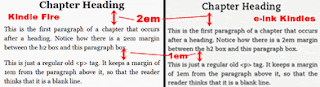
Tricking Out Kindle's Margins

Putting Everything Together


This is a lot of information to take in, and you really need to experiment on your own to get your eBook design the exact way you want it. Let's try putting together a story with all the styling characteristics you've learned so far. The content is a chapter of some Top Gun fan fiction, which may not be Shakespeare, but we can at least make the design look nice. Hypothetically, we want to have the following types of content in this chapter of our eBook:
  • a centered chapter heading
  • the first paragraph of the chapter must be spaced from the chapter heading by 2em
  • first-line indent paragraph style with a fully-justified alignment
  • a quote that has a block paragraph style with left-justified alignment
Some suitable CSS to accomplish this:

h2 {
margin: 0;
padding: 0;
text-align: center;
font-size: 1.5em;
font-weight: bold;
}

p {
text-indent: 1.25em;
margin: 0;
padding: 0;
text-align: justify;
font-size: 1.0em;
}

p.firstpara {
margin: 2em 0 0 0;
}

p.blockquote {
text-indent: 0em;
margin: 1em 2.5em 0 2.5em;
font-style: italic;
}

p.firstpara_after_blockquote {
margin: 1em 0 0 0;
}

span.i {font-style: italic;}
And the HTML containing this wretched story:
<h2>Top Gun Romance</h2>
<p class="firstpara">Navy officers playing volleyball in the sun. Dogtags dangling from their muscular chests. It cannot be disputed that this scene was the most awesomest scene in the history of cinema.</p>
<p>What's this? Goose has a wife? Impossible! It must be cover. Did you see how he reacted when Tom Cruise made this phenomenal, witty quip.</p>
<p class="blockquote">Eh, lieutenant, what were you doing there?</p>
<p class="blockquote">Communicating. Keeping up foreign relations. You know… giving him the bird.</p>
<p class="firstpara_after_blockquote">When I was in the Navy, we had a lot of discussion about how this movie really paved the way for Don't Ask Don't Tell to be repealed.</p>
<p>The movie, <span class="i">Top Gun</span>, and it's excellent soundtrack were so ahead of its time.</p>
Sample eBook Content with Various CSS Applied in Kindle Fire

There are a lot of CSS declarations in the preceding example, but this is typical of what a stylesheet for a real eBook looks like. Pay particular attention to how the top margins work. We had to declare special classes for paragraphs that come after the chapter heading and the block quote. This is because we wanted to have that extra amount of spacing not inherent in the normal first-line indent paragraph style. Bottom margins are kept at zero throughout all paragraphs to ensure the spacing is not different between e-ink Kindles and the Kindle Fire. Also note that we had to declare text-indent: 0; for the blockquote class, because we had already set text-indent: 1.25em; for all paragraphs. Recall the CSS specificity hierarchy ensures that anything with a class will override the declarations made for general elements.

As you become more proficient and advanced with CSS, be sure to keep a big-picture view in mind of how one simple declaration can affect the styling of your entire eBook.

Next Post: Page Breaks and Hyphenation

Share/Bookmark

April 15, 2012

Understanding the CSS Box Model - eBook Design Tutorial


Thank you for visiting this eBook design tutorial. We now have an eBook design startup—BB eBooks—dedicated to helping independent authors and small presses get their eBooks formatted, converted, and ready for sale at all the major online retailers (e.g. Amazon's Kindle Store, Barnes & Noble's Nook, iBookstore, Smashwords, etc.) Please contact us for a no-obligation quote. For those writers, editors, and publishers looking to go the DIY route for eBook production (you probably are if you visited this page), we offer free online tutorials and apps to help you professionally design your eBook. Please visit our Developers page and let’s work together to improve the overall standards of eBooks. Also, please sign up for the mailing list for promotions, design & marketing tips, plus eBook industry news.


Looking for a complete guide on eBook design and development? Please consider The eBook Design and Development Guide, which contains everything you need to know about HTML, CSS, EPUB, and MOBI/KF8 to make an eBook like a pro. Pick it up at Amazon for $6.99 today.

Previous Section: Text Styling

Do you remember that episode of The Simpsons where Bart goes to the box factory? For you whippersnappers, this was from the mid-90s, so it may be a bit before your time. As an eBook designer, it helps to think like the boring manager--everything is boxes--even though it involves being ridiculed by Krusty. The content displayed on the eBook reading device is actually a series of boxes, one stacked on top of another. Every <p>…</p>, <div>…</div>, and any other block element tag forms a box in the content, where nothing can be to left or right of it. When you have an <h2> chapter heading followed by three paragraph elements, you have a total of four boxes. Understanding how to alter the properties of each box allows you to adjust the spacing, indents, border, and background. This permits you to make advanced typographical changes to the presentation of your eBook.

The CSS box model contains four regions:
  1. Margin - area of empty space outside of the border that surrounds the entire box
  2. Border - rectangle around the box that surrounds the padding and content
  3. Padding - area of empty space between the content and border
  4. Content - the inner area that contains the text or image from the HTML
CSS Box Model Visualized

Margin and Padding Syntax

This box model applies to each and every block-level element in your HTML markup. You can assign different values for the top, right, bottom, and left values of the margin and padding properties in your CSS. Like the font properties, it is a good practice to assign margin and padding values in em units of relative measurement; however using absolute measurements in px may be suitable. Here is an example of assigning margin and padding values in CSS:
p.someclass {
margin-top: 1.5em;
margin-right: 0;
margin-bottom: 0;
margin-left: 1.5em;
padding-top: 0;
padding-right: 0.1em;
padding-bottom: 0;
margin-left: 0.1em;
}
This assigns the values uniquely, which is fine, but there is a shorthand way to do this. The equivalent declaration for the margin values above would be margin: 1.5em 0 0 1.5em;, and for the padding values the equivalent statement would be padding: 0 0.1em;. When using four values after the margin or padding property, you just need to remember TRBL (i.e. "Top-Right-Bottom-Left"). If you only have two values, such as the padding example above, the first number will be the top and bottom value, while the second number will be left and right value. It is also possible to just use one number such as margin: 1em;, which would assign the 1em margins all around the box.

Border and Background


Some new CSS concepts have been introduced in this discussion of the box model. The border is the rectangle that encompasses the padding and content section. Styling the border will be covered in more detail in the advanced CSS section, but here is a basic way to add border to your content:
p.someclass {
border-width: 2px;
border-style: solid;
border-color: black;
}
The shorthand declaration for this would be border: 2px solid black;. We will also explore more on backgrounds in the future, but for now be aware that you can set the background color with the background-color: color value; declaration, where color value is either one of the 143 predefined color names or hexadecimal code. By definition of the CSS box model, the background is underneath the border, padding, and content areas, but not the margin area.

CSS Box Model in Action


The CSS box model can be difficult to comprehend, so here is an example that will help to alleviate some confusion. In this HTML markup and content, we have three paragraphs that all have different padding and margin properties:
<p class="para1">This is paragraph #1 of the box example. It comes before paragraph #2 and has some margin and padding properties assigned to it.</p>
<p class="para2">This is paragraph #2 of the box example. It has margins but no padding.</p>
<p class="para3">This is paragraph #3 of the box example. The margins have been removed so you can see how they interact, but some padding has been added. Aren't you glad you grew up to be some schmoe working in a box factory.</p>
Some example CSS to alter the margins would be as follows:
p.para1 {
margin: 3em 0 0 3em;
padding: 0.75em;
background-color: pink;
border: 2px solid black;
}
p.para2 {
margin: 1.5em 0;
padding: 0;
background-color: cyan;
border: 2px solid black;
}
p.para3 {
margin: 0;
padding: 12px 12px 0 6px;
background-color: orange;
border: 2px solid black;
}
Example of Paragraphs with Different Margin/Padding in Chrome

Can you spot the differences in each of the paragraphs? The first box has a margin-top of 3em and a margin-left of 3em with some even padding around the content area. The second box has 1.5em margins on the top and bottom, but no margins on the left and right. Additionally, it has no padding, so the content butts right up against the border. The third box has no margins and some uneven padding. Don't be confused that the box doesn't merge right up against the browser viewing window in Chrome, because most web browsers and eReading software automatically add bit of space between the viewing window and box (with the notable exception of Adobe Digital Editions).

Here is a blown-up sample between the first and second box to help you better visualize how boxes stack on top of one another:
Example of Paragraphs in Chrome with Specifics on Sizing
Tip: To center your box, you can make the declaration margin: 0 auto;.

CSS Box Model as It Applies to eBooks on the Kindle


You may ask what happens if you get in a situation where the margin-bottom is 2em for the first box, and the margin-top is 1em for the second box. The nether region between the first and second box is sort of getting mixed signals from the CSS. Will the space between them be added up cumulatively to 3em, will it be the bigger of the two (in this case 2em), or will the software crash and the world come to an end? The answer is that most browsers and eReading devices will choose spacing between the two that is the largest (in this case, the margin-bottom: 2em; for the first box). This is the case for the Kindle Fire.

However, for e-ink Kindles and the Kindle for iOS apps, eBooks are rendered differently (yes, this is becoming a frustrating pattern). Instead of the margins collapsing into the bigger margin value, they add up cumulatively. You will learn some tricks on how to deal with this discrepancy in the subsequent section. As an example, here are two screen shots on the Kindle Fire and an e-ink Kindle with the exact same CSS and HTML. There is a margin-bottom: 2em; on box#1 and a margin-top: 2em; on box #2. Note the discrepancies in rendering:
Margins Rendered Differently on the Various Kindles

Now that you can visualize all block element tags as "boxes", it is possible to tinker with the spacing between your headings and paragraphs to highly customize the look of your eBook. In the next section, you will learn how to adjust your margins, along with indentation and alignment, to give your eBook a professional polish.

Next Section: Adjusting Indents, Alignment, and Margins
Share/Bookmark